Displaying reference tables
If you put a reference attribute represented by a table into a layout cell the reference table will be displayed as part of the form section – see how the Items attribute is displayed in the Item Type form below:
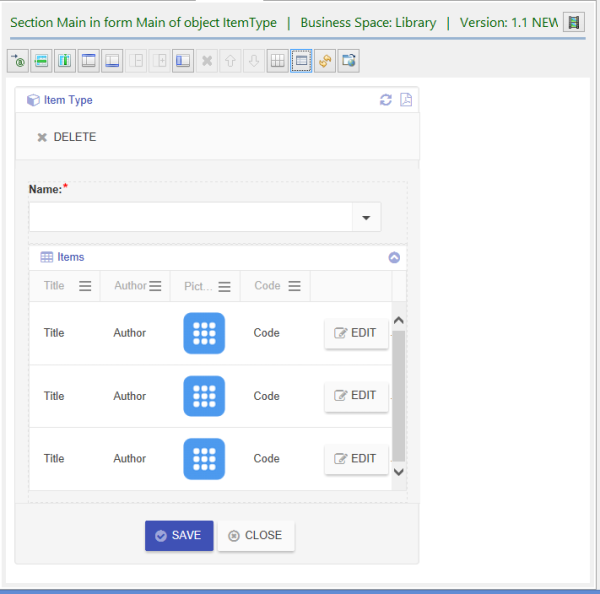
Here the Items attribute is put into its own cell. It is also possible to display references in tabs at the bottom of the form section as shown on the Contact Note form below – see In Reply To, Replies and Alert tabs.
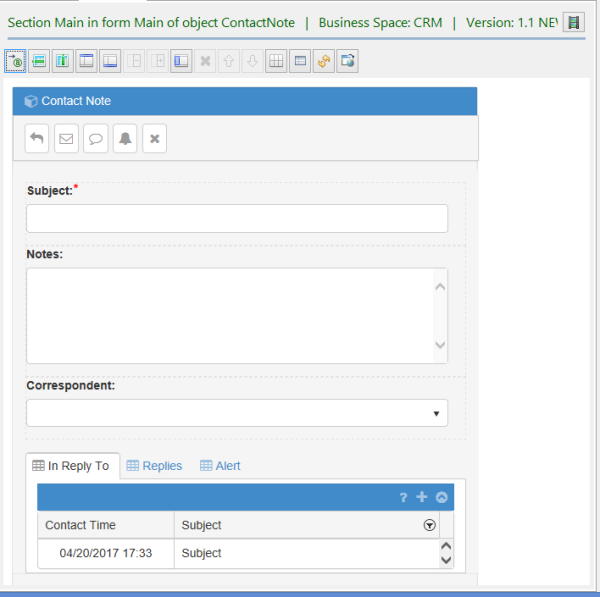
Here ReplyTo, Replies and Alerts attributes (all are references) are each displayed in their own tab. To achieve this effect one has to place reference attributes into the same cell. This should be done in the Table Layout mode. To do this select the cell with one reference attribute and drag it to the cell with another reference attribute. Alternatively, select the cell with the reference attribute and click on the “Attribute name” property in the Selection Property window. Then tick other reference attributes in the dialog that comes up to indicate that these reference attributes should be added to the cell.